
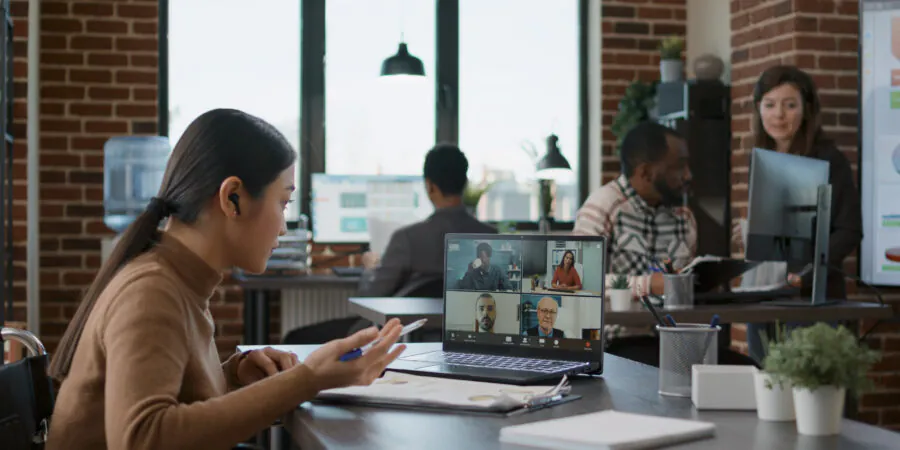
Remote and hybrid work have transformed how organizations operate, making collaboration tools more important than ever. Microsoft Teams has emerged as a leading platform for enabling seamless communication, collaboration, and productivity regardless of where employees work. However, simply deploying Teams isn’t enough. To maximize efficiency, organizations need a well-structured remote work setup that brings together communication, file sharing, meetings, task management, and employee engagement into a unified digital workspace.
This guide explores how to create the ultimate remote work setup using Microsoft Teams and Microsoft 365.
Why Microsoft Teams is the Foundation of Remote Work
Microsoft Teams serves as a central hub where employees can communicate, collaborate, share files, manage projects, and conduct virtual meetings without switching between multiple applications.
Key benefits include:
- Centralized communication
- Real-time collaboration
- Secure file sharing
- Integrated project management
- Enterprise-grade security
- Seamless Microsoft 365 connectivity
- Support for hybrid and remote work environments
When properly configured, Teams becomes the digital office for your entire organization.
Build a Centralized Collaboration Hub
The first step in creating an effective remote work environment is establishing Teams as the primary collaboration platform.
Organize Teams based on:
Departments
- Human Resources
- Finance
- Marketing
- Sales
- IT
Projects
- Product Launches
- Website Redesigns
- Digital Transformation Initiatives
Company-Wide Communication
- Leadership Updates
- Employee Announcements
- Company Events
A structured Teams environment ensures employees know exactly where to communicate and collaborate.
Optimize Team and Channel Structure
An organized Teams structure prevents confusion and improves productivity.
Example: Marketing Team
Channels:
- General
- Campaign Planning
- Content Creation
- Social Media
- Analytics
- Resources
Example: IT Team
Channels:
- General
- Help Desk
- Infrastructure
- Security
- Projects
Well-designed channels keep conversations focused and reduce information overload.
Enhance Virtual Meetings and Collaboration
Meetings are a critical component of remote work.
Microsoft Teams provides features that make virtual collaboration more engaging and productive:
Video Conferencing
Host meetings with:
- HD video and audio
- Screen sharing
- Meeting recordings
- Live captions
- Background effects
Collaborative Whiteboards
Use Microsoft Whiteboard during brainstorming sessions to encourage real-time collaboration.
Breakout Rooms
Create smaller discussion groups during workshops, training sessions, and team meetings.
Meeting Notes
Capture key decisions and action items directly within Teams meetings.
These capabilities help recreate the collaborative experience of in-person interactions.
Create a Digital Document Workspace
Remote employees need secure access to company files from anywhere.
Teams integrates with SharePoint and OneDrive to provide:
- Centralized document storage
- Real-time co-authoring
- Version control
- Secure file sharing
- Document search capabilities
Employees can collaborate on Word, Excel, and PowerPoint files simultaneously without creating multiple versions.
Streamline Task and Project Management
Managing projects remotely requires visibility and accountability.
Microsoft Teams integrates with:
Microsoft Planner
Track tasks using:
- Task assignments
- Due dates
- Progress tracking
- Kanban-style boards
Microsoft Project
Manage complex projects with advanced scheduling and reporting.
To Do
Help individuals organize daily responsibilities and personal tasks.
Integrating task management into Teams reduces the need for separate project management platforms.
Build an Employee Knowledge Hub
Remote workers often struggle to find information quickly.
Create a knowledge center using SharePoint integrated with Teams.
Include:
- Company policies
- Employee handbooks
- Training materials
- Standard operating procedures
- FAQs
- Technical documentation
This self-service approach reduces support requests and improves productivity.
Improve Communication and Employee Engagement
One challenge of remote work is maintaining employee engagement and company culture.
Teams can help by supporting:
Leadership Communication
Use dedicated channels for:
- Executive updates
- Company announcements
- Strategic initiatives
Employee Recognition
Celebrate achievements through:
- Recognition channels
- Employee spotlights
- Team accomplishments
Virtual Social Spaces
Create channels for:
- General discussions
- Wellness initiatives
- Employee interests
- Virtual events
These activities help employees feel connected regardless of location.
Automate Routine Processes
Automation reduces manual effort and improves efficiency.
Using Power Automate with Teams, organizations can automate:
- Approval requests
- Leave applications
- Document reviews
- Service desk tickets
- Notifications and reminders
Automation keeps workflows moving without requiring constant manual intervention.
Integrate Essential Business Applications
The ultimate remote work setup connects Teams with the tools employees use every day.
Popular integrations include:
- Microsoft Outlook
- SharePoint Online
- OneDrive
- Power BI
- Dynamics 365
- Salesforce
- ServiceNow
- Adobe Sign
- Power Apps
Bringing business applications into Teams creates a unified digital workplace experience.
Strengthen Security and Compliance
Remote work introduces additional security considerations.
Microsoft Teams supports enterprise-grade security through:
Multi-Factor Authentication (MFA)
Protect user accounts from unauthorized access.
Conditional Access Policies
Control access based on device, location, and risk factors.
Data Loss Prevention (DLP)
Prevent accidental sharing of sensitive information.
Sensitivity Labels
Classify and protect confidential documents and communications.
Compliance and Retention Policies
Ensure organizational and regulatory requirements are met.
Security should remain a priority when enabling remote work at scale.
Support Hybrid Work with Teams Rooms
For organizations adopting hybrid work models, Teams Rooms create seamless meeting experiences between remote and in-office employees.
Benefits include:
- One-touch meeting joins
- High-quality audio and video
- Intelligent cameras
- Content sharing
- Meeting room scheduling
Teams Rooms help bridge the gap between physical and virtual workplaces.
Best Practices for Remote Work Success
To maximize the value of Teams:
Standardize Communication
Define when to use chat, channels, meetings, and email.
Train Employees
Provide ongoing training on Teams features and collaboration best practices.
Reduce Meeting Fatigue
Encourage asynchronous communication when appropriate.
Establish Governance
Implement policies for team creation, channel management, and external sharing.
Monitor Adoption
Use Teams analytics to identify usage trends and improvement opportunities.
Encourage Work-Life Balance
Promote healthy collaboration habits and respect for employee availability.
Common Challenges and How to Overcome Them
Information Overload
Use channels strategically and encourage focused discussions.
Team Sprawl
Implement governance and naming conventions.
Lack of Engagement
Create opportunities for social interaction and recognition.
Security Concerns
Apply Microsoft 365 security and compliance controls.
Communication Gaps
Establish clear communication guidelines and expectations.
Addressing these challenges proactively improves long-term remote work success.
The Future of Remote Work with Teams
Microsoft continues to expand Teams capabilities through AI-powered innovations such as Microsoft Copilot.
Emerging features include:
- AI-generated meeting summaries
- Intelligent task recommendations
- Automated content creation
- Enhanced search experiences
- Personalized productivity insights
These advancements will further enhance the remote work experience and improve organizational efficiency.
Conclusion
Creating the ultimate remote work setup requires more than video conferencing—it requires a connected digital workplace that supports communication, collaboration, knowledge sharing, project management, and employee engagement. Microsoft Teams provides the foundation for this environment by bringing together the tools employees need into a single platform.

Comments
Comments are moderated before publication. Spam, promotional content, and inappropriate submissions will not be approved.