
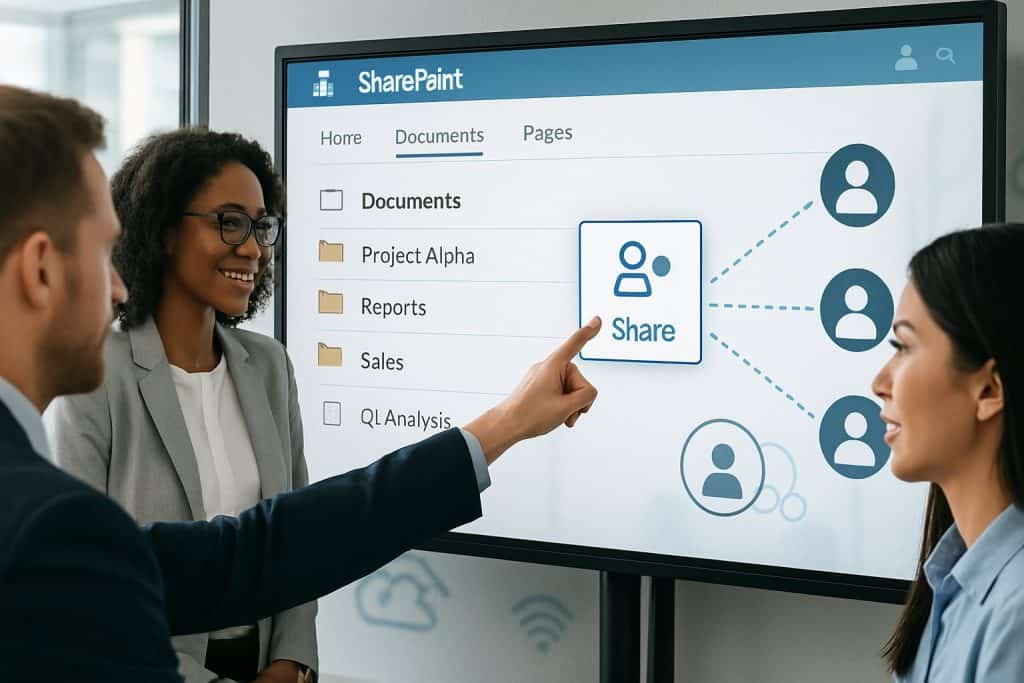
As organizations grow, managing information across different teams becomes increasingly challenging. Departments such as Human Resources, Finance, IT, Sales, and Operations often require dedicated spaces to collaborate, share documents, and manage internal processes. SharePoint Department Sites provide a structured solution by giving each department its own digital workspace while maintaining connectivity across the organization’s intranet.
This guide walks you through the process of creating effective department sites in SharePoint and highlights best practices for long-term success.
What Are Department Sites in SharePoint?
Department Sites are dedicated SharePoint sites designed to support the unique needs of individual business units. These sites act as centralized hubs where teams can store documents, share updates, manage workflows, and collaborate on projects.
Common department sites include:
- Human Resources
- Finance
- Information Technology
- Marketing
- Sales
- Operations
- Legal
- Customer Service
Each site can be customized to display department-specific content while remaining aligned with the organization’s overall intranet structure.
Benefits of Department Sites
Creating dedicated department sites offers several advantages:
- Centralized access to department resources
- Improved team collaboration
- Better document organization
- Enhanced communication within departments
- Streamlined business processes
- Role-based access control
- Consistent user experience across the organization
Department sites help eliminate information silos and ensure employees can easily access the resources they need.
Step 1: Plan Your Department Site Structure
Before creating a site, define its purpose and content requirements.
Consider the following questions:
- What information will the department share?
- Who will access the site?
- What documents need to be stored?
- Are there approval workflows required?
- What integrations are needed?
A clear plan helps create a site that supports both current and future business needs.
Step 2: Create a New SharePoint Site
To create a department site:
- Open SharePoint Online.
- Select Create Site from the SharePoint start page.
- Choose either:
- Team Site for collaboration-focused departments.
- Communication Site for information-sharing departments.
- Enter the site name.
- Add a site description.
- Configure privacy settings.
- Assign site owners and members.
- Click Finish.
The new department site will be created and ready for customization.
Choosing Between Team Sites and Communication Sites
Team Sites
Team Sites are best for departments that require active collaboration.
Ideal for:
- Human Resources
- Finance Teams
- IT Departments
- Project Teams
Features include:
- Shared document libraries
- Microsoft Teams integration
- Task management
- Real-time collaboration
Communication Sites
Communication Sites are designed for broadcasting information.
Ideal for:
- Corporate Communications
- Executive Leadership
- Internal News Portals
- Training Centers
Features include:
- News publishing
- Rich content layouts
- Visual storytelling
- Company-wide announcements
Many organizations use a combination of both site types.
Step 3: Configure Navigation
Effective navigation improves user experience and content discovery.
Include navigation links such as:
- Home
- Department News
- Documents
- Policies
- Forms
- Training Resources
- Team Directory
- FAQs
Simple and intuitive navigation helps employees locate information quickly.
Step 4: Set Up Document Libraries
Document libraries serve as the foundation of department sites.
Examples include:
Human Resources Library
- Employee handbooks
- Benefits information
- Policies and procedures
Finance Library
- Budget reports
- Financial templates
- Expense guidelines
IT Library
- Technical documentation
- System guides
- Security policies
Use metadata and content types to organize documents more effectively than relying solely on folders.
Step 5: Add Department-Specific Content
Modern SharePoint pages can be customized using web parts to create engaging user experiences.
Useful web parts include:
News Web Part
Share department announcements and updates.
Quick Links
Provide access to frequently used resources.
Events Web Part
Display upcoming meetings, training sessions, and important deadlines.
Document Library Web Part
Show important files directly on the homepage.
People Web Part
Highlight team members and key contacts.
Hero Web Part
Feature important announcements and initiatives.
These components help create an informative and visually appealing site.
Step 6: Configure Permissions and Security
Every department handles information differently, making access control essential.
SharePoint allows administrators to configure:
- Site-level permissions
- Library-level permissions
- Folder-level permissions
- Document-level permissions
Examples include:
- HR content accessible only to HR staff
- Finance reports restricted to finance teams
- Public resources available company-wide
Role-based permissions improve security while maintaining usability.
Step 7: Integrate Microsoft 365 Tools
Department sites become more powerful when connected to other Microsoft 365 applications.
Common integrations include:
Microsoft Teams
Enable real-time collaboration and communication.
Power Automate
Automate approval workflows and notifications.
Power Apps
Create custom departmental applications.
Microsoft Forms
Collect employee feedback and requests.
Viva Connections
Deliver department content directly within Microsoft Teams.
These integrations enhance productivity and streamline operations.
Step 8: Create Automated Workflows
Departments often manage repetitive processes that can be automated.
Examples include:
- Leave request approvals
- Expense report approvals
- Employee onboarding workflows
- IT service requests
- Policy acknowledgment tracking
Automation reduces manual effort and improves process consistency.
Step 9: Connect Sites Using Hub Sites
As the number of department sites grows, managing them individually becomes difficult.
SharePoint Hub Sites allow organizations to:
- Connect related department sites
- Maintain consistent branding
- Enable centralized navigation
- Aggregate news and search results
For example, all department sites can be connected to a corporate intranet hub for a unified employee experience.
Best Practices for Department Sites
To maximize adoption and effectiveness:
Keep Content Organized
Use libraries, metadata, and clear navigation structures.
Assign Content Owners
Ensure someone is responsible for maintaining content accuracy.
Limit Permission Complexity
Avoid overly complicated security structures.
Promote Self-Service Resources
Provide employees with easy access to forms, guides, and FAQs.
Review Content Regularly
Archive outdated information and update resources frequently.
Use Consistent Branding
Maintain a professional appearance across all department sites.
Common Department Site Examples
Human Resources Site
- Employee handbook
- Benefits information
- Onboarding resources
- Company policies
Finance Site
- Budget templates
- Financial procedures
- Reporting guidelines
IT Site
- Service desk resources
- System documentation
- Security training
Sales Site
- Product information
- Sales collateral
- Training materials
Marketing Site
- Brand guidelines
- Campaign resources
- Content calendars
Each site should reflect the department’s unique operational needs.
Conclusion
Department Sites in SharePoint provide dedicated workspaces that improve collaboration, information sharing, and operational efficiency. By carefully planning site architecture, organizing content, implementing appropriate security controls, and leveraging Microsoft 365 integrations, organizations can create powerful departmental hubs that support both employees and business objectives.
Sources
- Microsoft Learn. Create and Manage SharePoint Sites – Official guidance on creating Team Sites and Communication Sites in SharePoint Online.
- Microsoft Learn. Planning SharePoint Sites and Information Architecture – Covers site structure, navigation, content organization, metadata, and governance planning.
- Microsoft Learn. Team Sites vs. Communication Sites in SharePoint – Explains the differences between site types and when to use each.
- Microsoft Learn. SharePoint Document Libraries – Details how document libraries support content storage, organization, metadata, versioning, and collaboration.

Comments
Comments are moderated before publication. Spam, promotional content, and inappropriate submissions will not be approved.